After the system reboots into OL8:
1. Validate OS-Level Services
Check that networking, mount points, and systemd services are functioning. Verify kernel version and key packages.
2. Perform Cleanup Operations
First, if your leapp report suggested to set another alternative to Python, do so.
sudo alternatives --set python /usr/bin/python3
Then mount all external drives again and set SELINUX to enforcing.
sudo vi /etc/fstab # uncomment all lines from above again
sudo mount -a
sudo vi /etc/selinux/config # SELINUX=enforcing
Download the new dhclient script from Oracle to the following location.
/etc/dhcp/exit-hooks.d/dhclient-exit-hook-set-hostname.sh
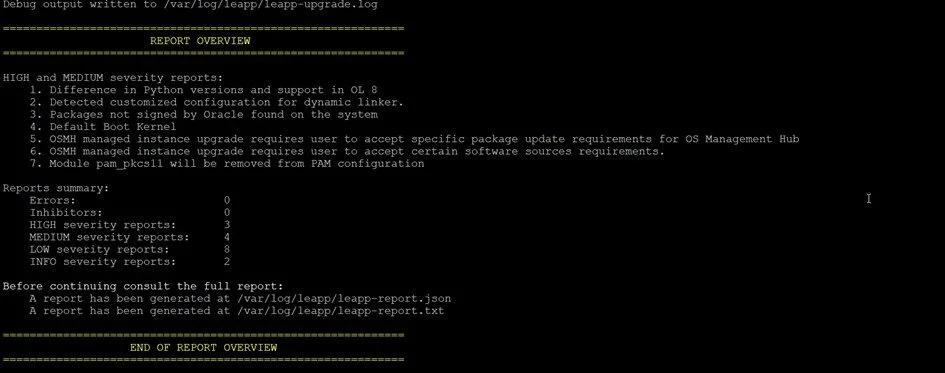
Remove old MySQL packages if required by /var/log/leapp/leapp-report.txt.
sudo yum remove mysql-release-el8.x86_64 mysql-community-client-plugins.x86_64 postfix-mysql.x86_64
Upgrade your DNF config.
sudo nano /etc/dnf/dnf.conf
Comment out the following line.
#exclude=python2-leapp,snactor,leapp-upgrade-el7toel8,leap
Remove old OL7 packages.
rpm -qa | grep el7 # lists all OL7 packages which need to be removed
sudo yum remove <insert packages from previous command>
rpm -qa | grep el7 # should now be empty
Uninstall leapp.
rpm -qa | grep leap # lists all leapp packages to remove
sudo yum remove <insert leapp packages here>
rpm -qa | grep leap # should now be empty
sudo rm -rf /root/tmp_leapp_py3 # remove temporary leapp folder
Attach your machine to an OSMH OL8 group in OCI.
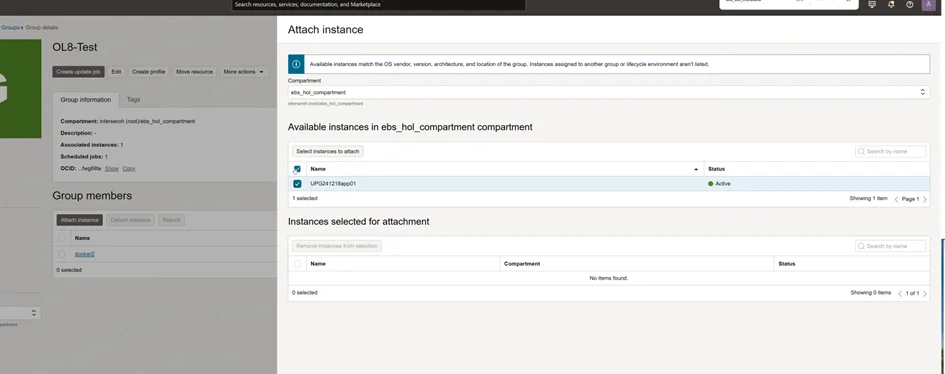
Upgraded instance re-attached to group (in this case OL8-Test)
Disable root login again and delete root password.
sudo vi /etc/ssh/sshd_config # comment out PermitRootLogin yes
sudo passwd -d root
Perform another reboot. After the reboot, wait until OSMH did run for the first time. OSMH runs approximately every 10 minutes, so it can take up to 10 minutes for it to run for the first time. Once OSMH did run, check the repolist.
sudo yum repolist
It should now only contain OL8 repositories. All OL7 repositories should have been removed by OSMH. Now perform another round of package updates and reboot the system afterwards.
sudo yum upgrade
The upgrade process should update the kernel to version 5.15 at least. Verify the kernel version after rebooting the system.
uname -a # needs to print kernel version 5.15 at least
To ensure proper accessibility of your EBS, update the FirewallBackend from nftables to iptables. See Doc-ID 1330701.1.
sudo vi /etc/firewalld/firewalld.conf # FirewallBackend=iptables
sudo systemctl restart firewalld
3. Install new ORDS
Now install the latest ORDS on the apps tier.
sudo yum install ords
4. Re-link E-Business Suite Executables
Now you need to relink the executables after the OS upgrade.
. ~/setenv_run.sh
adadmin # enter EBS system and apps passwords
Select option 2 (Maintain Applications Files menu), then option 1 (Relink Applications programs). Select defaults for all prompts and exit once done.
5. Run cleanup-Patch
Run the cleanup122.sh script according to the README of Patch 35090694 (TECHP:Cleanup script to remove Ilog files in EBS R12.2 distribution).
6. Start EBS Services
Start your EBS services and APEX again and check that everything is running as expected.