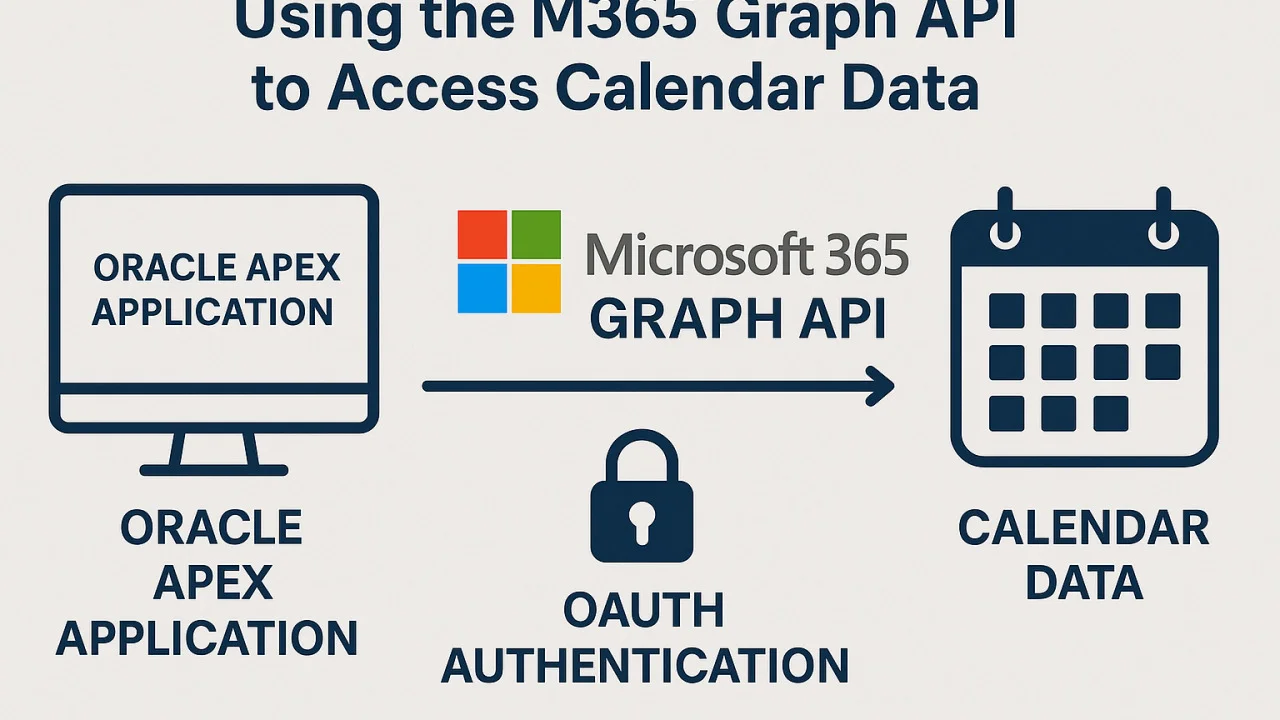
When integrating with Microsoft Graph, there are two permission types: delegated and application.
We’ll be using delegated permissions so users explicitly consent to sharing their data – and your app won't have unrestricted access to the org’s calendars.
Register the App in Azure AD
First, create an Enterprise Application in Azure:
Go to Azure Portal > Azure Active Directory > App registrations
Click New registration
Name your app and set the Redirect URI to your APEX instance: https://<your_apex_domain>/ords/apex_authentication.callback
After registration:
Save the Application (client) ID and Directory (tenant) ID
Go to API permissions > Add a permission > Microsoft Graph
Select Delegated permissions, then add: Calendars.Read
This gives your app permission to read a user’s personal calendar — but only after they sign in and consent.
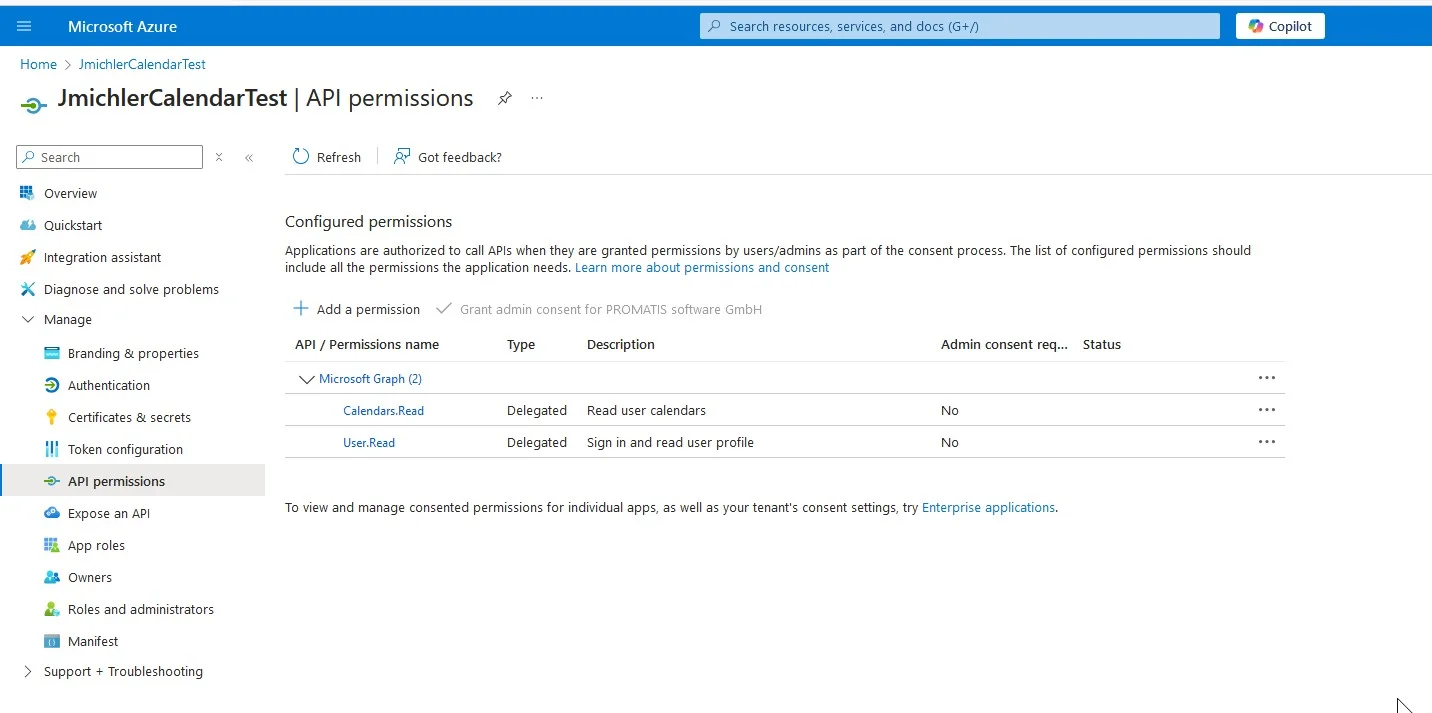
Configuration of the Application in Azure Portal
Create a set of client credentials and note down:
Set Up OAuth2 in Oracle APEX
In APEX first of all you have to create Credentials for your newly created OAuth App. For this navigate to Workspace Utilities > Web Credentials >Create. The credentials have to be of type "Basic credentials" with the "Client ID" as the username and the "Secret Value" as the password.
Oracle APEX supports OAuth2 natively through social sign-in. Here's how to configure it:
Go to Shared Components > Authentication Schemes
Create a New Scheme > Social Sign-In
Set the Credential Store to the Credential store created previously.
Set Authentication Provider to OpenID Connect Provider
Fill in: Discovery URL: https://login.microsoftonline.com/<TENANT_ID>/.well-known/openid-configuration
For the Scope it should be enough to just have openid
In my case I want to have the login/e-mail as the username; best select #upn# to achieve this.
Finally make sure to enter a post authentication procedure. In my case this is "post_authentication_fct"
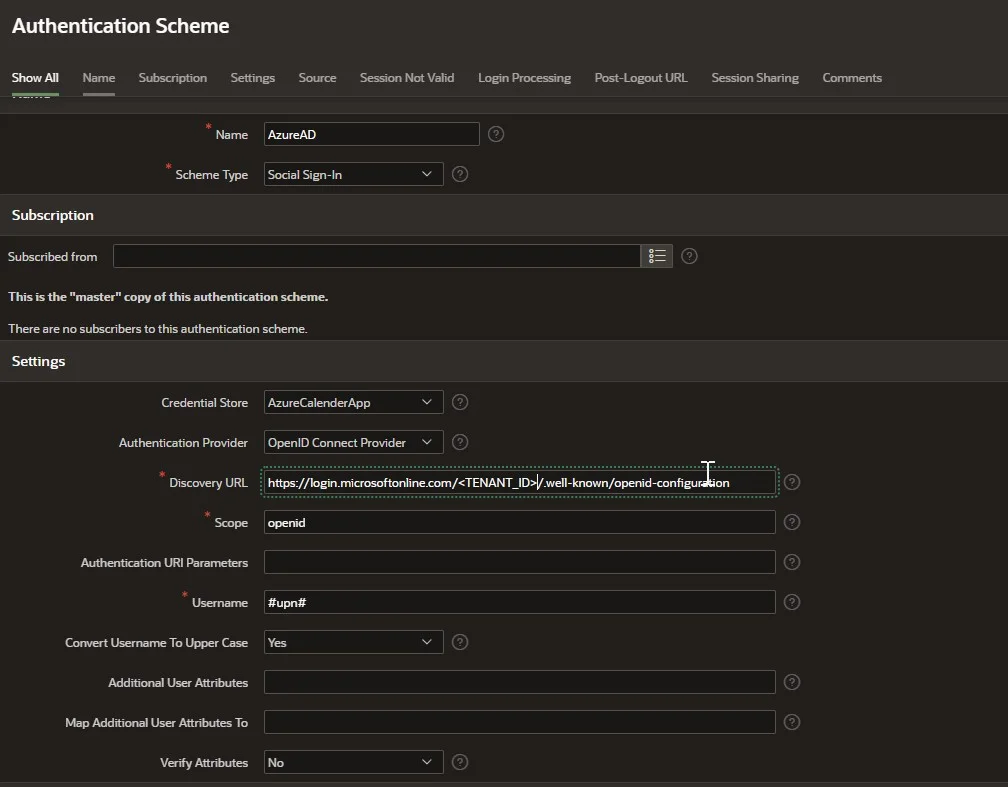
Newly setup Authentication Scheme
Enable this scheme and make it the default for your app.
Now, users can log in using their Microsoft 365 credentials, and APEX will manage token storage behind the scenes.
Preserve the REFRESH_TOKEN
After login a Refresh-Token is available within the Post-Login-Procedure. We save that away into an Application Item "REFRESH_TOKEN" as follows:
procedure post_authentication_fct
as
l_token varchar2(4000);
begin
-- set token for REST call
l_token := trim(apex_json.get_clob('refresh_token')) ;
apex_util.set_session_state('REFRESH_TOKEN', l_token);
end post_authentication_fct;
For this you have to create the following application items:
REFRESH_TOKEN
ACCESS_TOKEN
We can then create an access token based on this application item whenever we need it as follows.
Note: The access_token that I can get in the post_authentication_fct didn't work for unclear reasons for me. But with the REFRESH_TOKEN I was able to proceed:
procedure set_oauth_token
as
l_access_token varchar2(4000);
l_access_token_parsed apex_jwt.t_token;
l_refresh_token varchar2(4000);
rest_p apex_application_global.vc_arr2;
rest_v apex_application_global.vc_arr2;
v_response CLOB;
begin
l_access_token := apex_util.get_session_state('ACCESS_TOKEN');
if l_access_token is not null then
l_access_token_parsed := apex_jwt.decode (
p_value => l_access_token );
begin
apex_jwt.validate (
p_token => l_access_token_parsed,
p_aud => 'https://graph.microsoft.com',
p_iss => 'https://sts.windows.net/<TENANT_ID>/',
p_leeway_seconds => 120);
APEX_WEB_SERVICE.OAUTH_SET_TOKEN(l_access_token);
return;
exception when VALUE_ERROR then
null; -- we try to get a new one later
end;
end if;

l_refresh_token := apex_util.get_session_state('REFRESH_TOKEN');
--Note: You probably want to get ClientID/Secret from the APEX Credentials:
rest_p(1) := 'client_id';
rest_v(1) := '<CLIENT_ID>';
rest_p(2) := 'client_secret';
rest_v(2) := '<CLIENT_SECRET>';
rest_p(3) := 'grant_type';
rest_v(3) := 'refresh_token';
rest_p(4) := 'scope';
rest_v(4) := 'https://graph.microsoft.com/.default';
rest_p(5) := 'refresh_token';
rest_v(5) := l_refresh_token;
v_response := apex_web_service.make_rest_request(
p_url => 'https://login.microsoftonline.com/<TENANT ID>/oauth2/v2.0/token',
p_http_method => 'POST',
p_parm_name => rest_p,
p_parm_value => rest_v
);
SELECT
JSON_VALUE(v_response, '$.access_token')
INTO l_access_token
FROM
dual;
l_access_token_parsed := apex_jwt.decode (
p_value => l_access_token );
apex_jwt.validate (
p_token => l_access_token_parsed,
p_aud => 'https://graph.microsoft.com',
p_iss => 'https://sts.windows.net/<TENANT_ID>/',
p_leeway_seconds => 120);
APEX_WEB_SERVICE.OAUTH_SET_TOKEN(l_access_token);
apex_util.set_session_state('ACCESS_TOKEN', l_access_token);
end set_oauth_token;
You can/should call this procedure before every actual call to the API. The actual call can then be:

declare
l_response clob;
begin
set_oauth_token;
l_response := apex_web_service.make_rest_request(
p_url => 'https://graph.microsoft.com/v1.0/me/calendars',
p_http_method => 'GET',
p_scheme => 'OAUTH_CLIENT_CRED',
);
-- Use APEX_JSON to parse and display events
end;
This call returns the signed-in user’s accessible calendars using their token — no tenant-wide access required. You can get the actual calendar Events with something similar like:
'https://graph.microsoft.com/v1.0/me/calendars/'||p_calendar_id||'/calendarview?startdatetime='||l_start_period || '&enddatetime='||l_end_period;
Want to show a calendar in your app? Parse the JSON response using APEX_JSON and feed it into a Calendar region, Interactive Report, or even a Kanban view.
Wrapping Up
Let’s recap what we built:
An Oracle APEX app with Microsoft social sign-in
Delegated permission access to Microsoft 365 calendars
A secure, least-privilege integration via Microsoft Graph API
This approach offers the best of both worlds: enterprise-grade integration with zero overreach into your organization’s data.